

Steps
When adding a new deployment step, fDeploy lets you select one of the following templates:
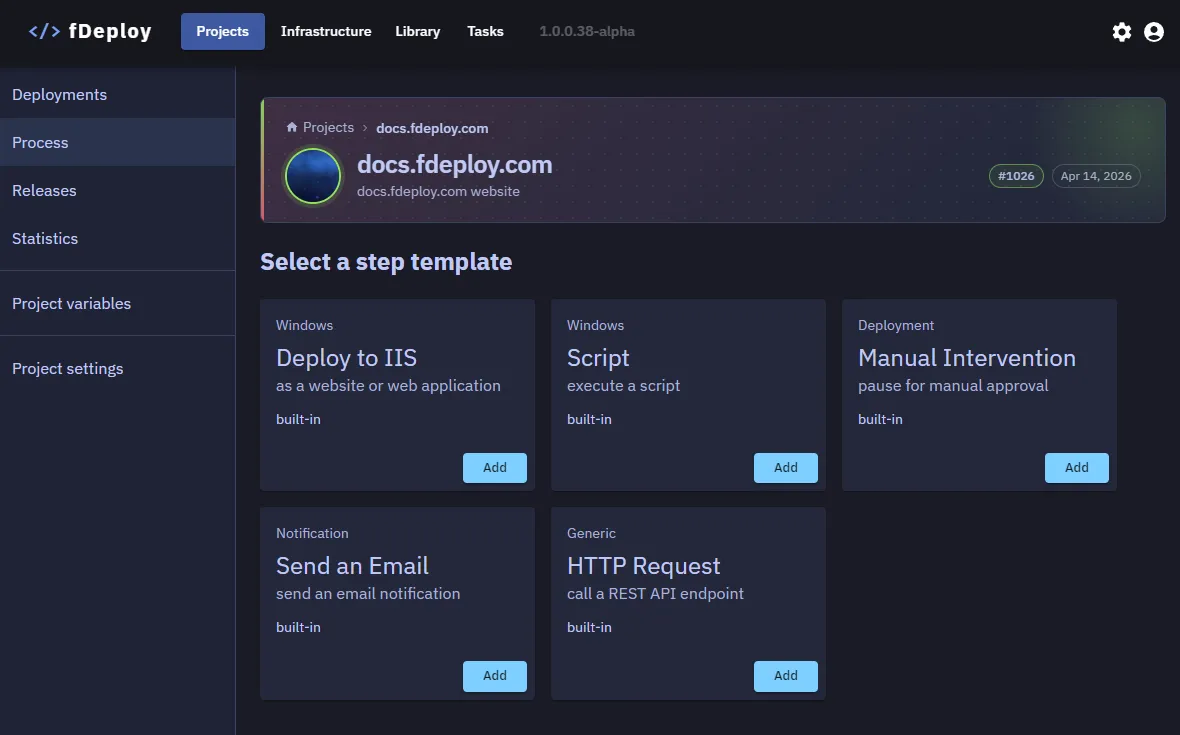
Deploy to IIS
This template is used when deploying to IIS in the form of an IIS website, IIS web application or IIS virtual directory.
The following parameters can be configured:
- Step name: shown in the step overview tree and referred to by deployment logs
- Target roles: which deployment targets should the step be executed on
- Package: a NuGet package to be deployed from the fDeploy Package library — accepts variable binding
- IIS type of deployment:
- web site
- web application
- virtual directory
Nearly every text field and checkbox below accepts variable binding — look for the Insert Variable button on text fields or the Bind to variable link next to checkboxes.
The next section dives into further details about each of the deployment types.
IIS website
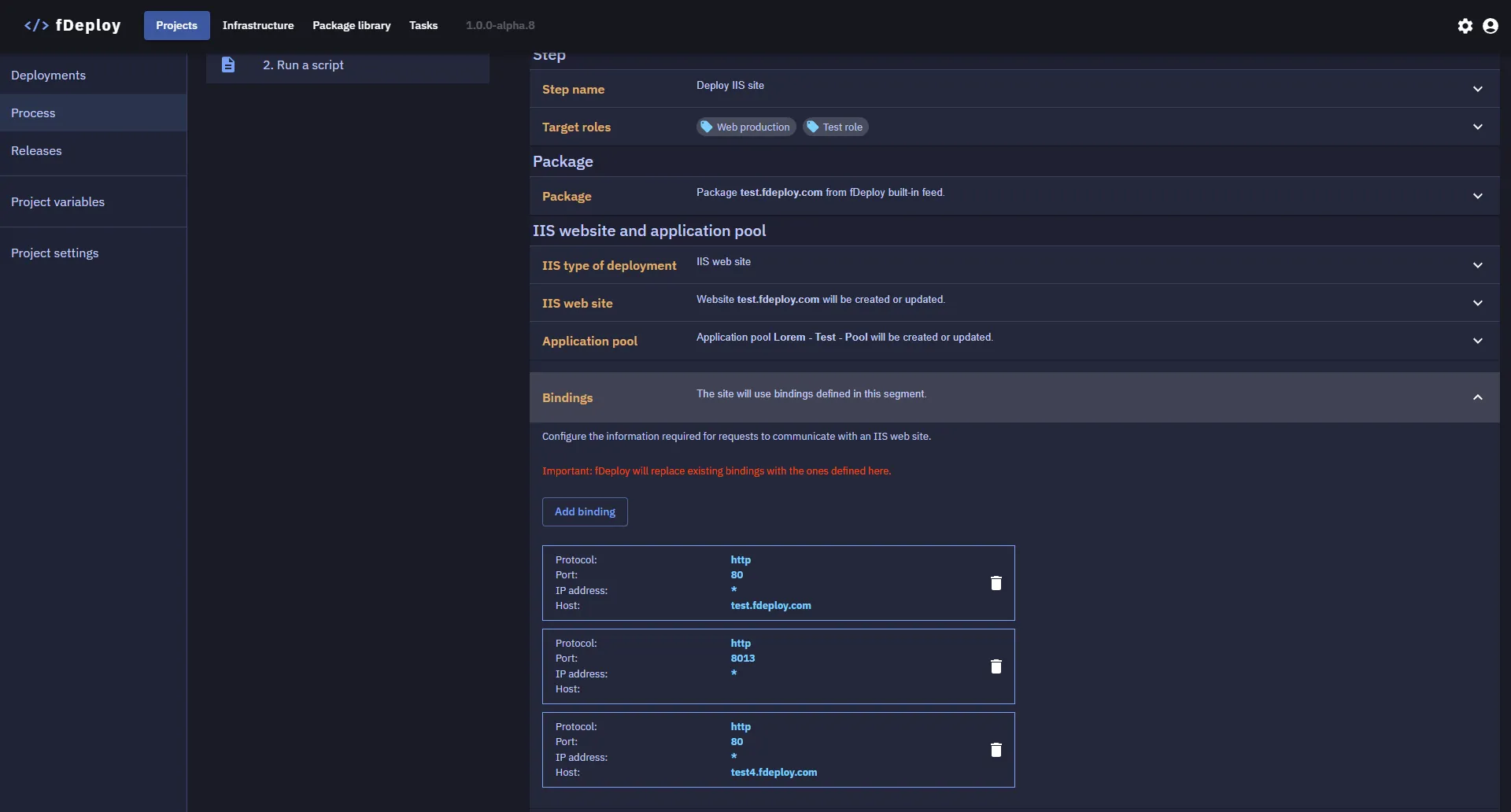
fDeploy is built to mirror the GUI segments of Microsoft IIS manager, so if you ever created a site in IIS manager, you are already familiar with fDeploy. An IIS website typically consists of the following properties:
Site name
For example, test.fdeploy.com. Accepts variable binding, so you can deploy the same process to multiple environments with different host names — e.g. #{Variable.SiteHost}.
Start the website after successful deployment
A bindable checkbox — can be toggled directly or bound to a project variable whose value resolves to true / false at deployment time.
Application pool
The name of the application pool to use (fDeploy will create it if it does not exist on the target). Accepts variable binding.
Bindings
Each binding entry supports the following fields, all of which accept variable binding:
When using http:
- Protocol — literal
http/httpsor a variable - IP address
- Port
- Hostname
When using https:
- SSL certificate thumbprint — or select a certificate from the Certificate library
- Require SNI — a bindable checkbox
- All the fields above
IIS authentication
You can select the following types of authentication to enable — each is a bindable checkbox:
- anonymous authentication
- basic authentication
- windows authentication
IIS web application
This type requires an existing IIS site to use as a parent. The following information is required — all three fields accept variable binding:
- Parent website name
- IIS virtual path
- Application pool name
IIS virtual directory
Just like web application type above, this type requires an existing IIS site to use as a parent. The following information is required — both fields accept variable binding:
- Parent website name
- IIS virtual path
Configuration transforms
fDeploy supports .NET XML Document Transform (XDT) for transforming configuration files during deployment. When enabled, fDeploy Agent will automatically apply *.Release.config and *.<Environment>.config transforms in order. You can also define additional transforms using explicit, wildcard, or relative path patterns.
This section has two bindable fields:
- Automatically run .NET configuration transformation files — a bindable checkbox
- Additional transforms — a text field that accepts variable binding (e.g.
#{Variable.ExtraTransforms}can expand to a multi-line list of transform definitions at deploy time)
For full details on the transform syntax, see the Configuration transforms page.
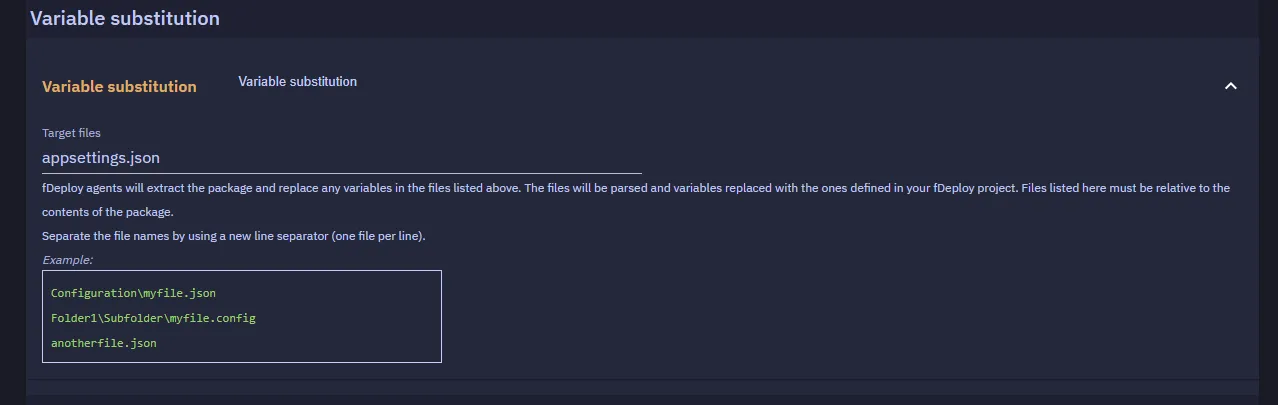
Variable substitution
This section defines target files to perform variable substitution on. Files defined here will be modified by fDeploy Agent and searched for any #{variable_name} placeholders matching the role and environment scope for a given deployment task.
The Target files list itself accepts variable binding — you can supply the list of files to substitute through #{Variable.SubFiles}.
Execute a script
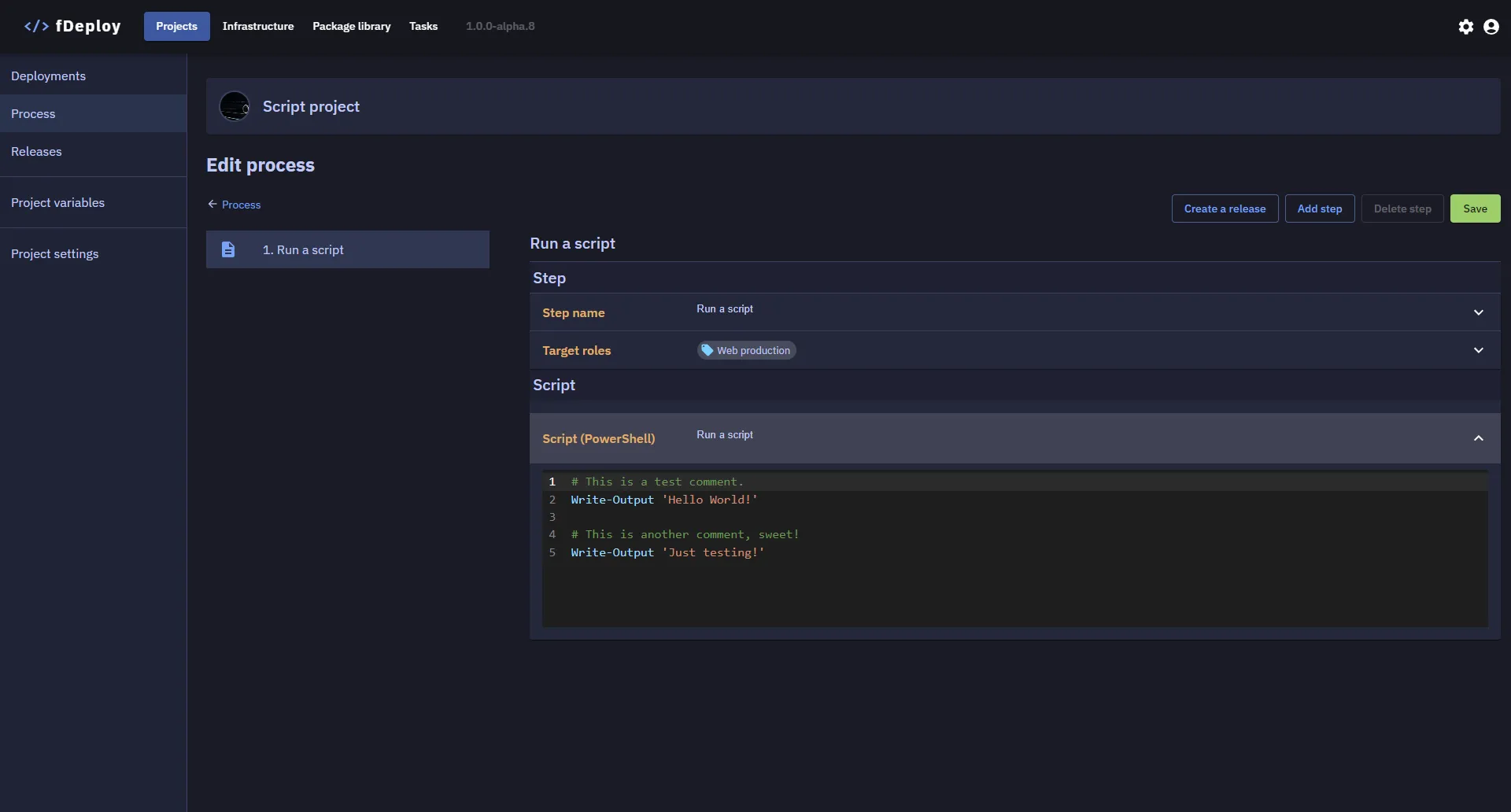
This template is used when executing a PowerShell script is required as part of the deployment process.
The body of the script is defined as a part of this deployment step. The script output is recorded as a part of the deployment task log.
Execution location
You can choose where the script runs:
| Location | Behavior |
|---|---|
| On deployment targets (default) | The script is dispatched to each fDeploy Agent matched by the step’s target roles and environment filter. This is the original behavior. |
| On fDeploy Server | The script runs once, directly on the fDeploy Server machine under the server’s Windows service account. No deployment targets or roles are needed. |
Use On deployment targets when the script needs to run on the machines you’re deploying to — for example, restarting a service, warming up a local endpoint, or reading local configuration.
Use On fDeploy Server when the script is not target-specific — for example, calling an external API, updating a shared database, running a migration, or notifying an external system. This removes the need to designate a target just to run a one-off script.
When On deployment targets is selected, the Target roles and Target batch size fields are shown. When On fDeploy Server is selected, these fields are hidden since the script runs once on the server regardless.
Inserting variables into the script body
The PowerShell editor has an Insert Variable button beneath it that opens the same grouped dropdown described in Variable binding in step fields. Clicking a variable splices its token at the current caret position in the CodeMirror editor — you can mix tokens with PowerShell code freely, and insert multiple tokens into the same script.
Tokens are resolved server-side before the script is dispatched to the agent, so the agent executes already-substituted PowerShell. Typical pattern:
Write-Host "Deploying #{Project.Name} #{Release.Version} to #{Environment.Name}"$apiBase = '#{Variable.ApiBaseUrl}'Invoke-RestMethod -Uri "$apiBase/health"How sensitive variables are handled in scripts
When a sensitive variable (#{Variable.X} where X is marked sensitive) is referenced in a script body, fDeploy does not substitute the plaintext into the script text. Instead:
- The server rewrites
#{Variable.X}to$env:FDEPLOY_SENSITIVE_Xin the dispatched script body. - The plaintext is shipped to the agent over TLS in a separate sidecar map, not in the script source.
- The agent launches
powershell.exewith those values injected as child-process environment variables (scoped to the script’s PowerShell process only — never touching the agent host environment). - PowerShell resolves
$env:FDEPLOY_SENSITIVE_Xat runtime to the plaintext. - The child process exits, the environment variables are cleaned up automatically, and the plaintext is registered with the deployment log redactor as a safety net against exact-substring echoes.
This means the sensitive value never appears as a literal in the dispatched script text, which defeats most common leak patterns (PowerShell tracing, syntax error echoes, transcription).
HTTP Request
This template performs a single outbound HTTP call during the deployment process. It is useful for triggering external pipelines (GitHub Actions, GitLab CI, Jenkins), warming up a freshly deployed application, posting status to chat services (Slack, Teams), pinging health endpoints, flushing caches, or any other REST API integration that fits cleanly into the deployment timeline.
The following parameters can be configured.
Step name
- Step name: shown in the step overview tree and referred to by deployment logs.
Execution location
You can choose where the HTTP request is sent from:
| Location | Behavior |
|---|---|
| On deployment targets (default) | The request is dispatched to each fDeploy Agent matched by the step’s target roles and environment filter. The agent sends the HTTP request from the target machine. |
| On fDeploy Server | The request is sent once, directly from the fDeploy Server machine. No deployment targets or roles are needed. |
On deployment targets is useful when:
- Internal APIs (a deployed app’s
/warmupor/healthz) are reachable from the agent because it runs on the same host or network as the target. localhostsemantics apply: pointing the URL athttp://localhost:<port>smoke-tests the very thing you just deployed on each target.- You need the request to fan out to multiple targets (e.g. cache flush on each web server).
On fDeploy Server is useful when:
- You’re calling external APIs (GitHub, Slack, PagerDuty) that don’t depend on which target runs the request.
- You want a single HTTP call without designating a target just to have somewhere to run it.
- The server has network access to the target API but the agents don’t.
When On deployment targets is selected, the Target roles and Target batch size fields are shown. When On fDeploy Server is selected, these fields are hidden.
Target roles
Visible only when execution location is On deployment targets.
- Target roles: the request is executed once per matching target. For most external-API use cases you want exactly one target — pick a single role with one healthy machine, or use target batch size to limit fan-out.
URL and method
- Method:
GET,POST,PUT,PATCH,DELETE, orHEAD. - URL: the full request URL. Must start with
http://,https://, or a#{Variable.X}token that resolves to one. Accepts variable binding via the Insert Variable picker — see Variable binding in step fields.
A typical pattern uses environment-scoped variables to point at different hosts per environment:
https://api-#{Environment.Name}.example.com/v1/deployments/#{Release.Version}Headers
Add any number of custom request headers. Each row has three controls:
- Name — header name (e.g.
Content-Type,X-Request-Id). - Value — header value. Click the
{ }icon next to the row to insert a system placeholder or project variable into the value. - Sensitive — toggles the value field to a password input and marks the value as sensitive in the editor. Toggling sensitive is an editor-side affordance only; the actual log redaction is driven by the underlying project variable’s sensitive flag (see Authentication below).
Content-Type is treated correctly when set via a header — it overrides any default content type that fDeploy would have applied to the request body.
Authentication
A dedicated section sits above the request body for credential handling. Three modes are supported:
- None — no
Authorizationheader is added. - Basic — supplies a username field and a password field. The agent base64-encodes
username:passwordand sendsAuthorization: Basic <encoded>. - Bearer — supplies a single token field. The agent sends
Authorization: Bearer <token>.
Both the username and the secret accept variable binding via the Insert Variable picker.
Request body
A multi-line text area for the body. Common usage:
{ "ref": "#{Release.Version}", "environment": "#{Environment.Name}", "deployedBy": "#{Deployment.CreatedBy}"}The Insert Variable button below the textarea splices a token at the current caret position, the same way the script-step PowerShell editor does.
The body is sent as UTF-8. Set Content-Type via the Headers section to override fDeploy’s default.
Response handling
- Expected status codes — a comma-separated list (e.g.
200,201,204). Empty falls back to “any 2xx is success”. The classifier accepts whitespace and ignores invalid entries. - Timeout (seconds) — request timeout, default 30. Hard-capped at 600 seconds in the editor.
- Fail the deployment step on non-success — when on (default), an unexpected status code or transport error fails the deployment. When off, the step records a warning and the deployment continues — useful for fire-and-forget notifications where you don’t want the deployment to depend on the receiving system.
- Capture response body in deployment log (truncated to 8 KB) — when on, the agent reads the response body, truncates it to 8 KB, and includes it in the per-target log line. Bodies are run through the sensitive-value redactor before being persisted.
What the deployment log shows
Each execution produces one log line under the step entry. When running on deployment targets, each target gets its own line:
POST https://api.example.com/deploy -> status 201 (147 ms) on target [web-01]. HTTP POST 201 CreatedWhen running on fDeploy Server, a single line is recorded:
POST https://api.example.com/deploy -> status 201 (147 ms) on fDeploy Server. HTTP POST 201 CreatedThe line includes method, resolved URL, status code, elapsed time, execution location, and (if response body capture is on) the truncated body. The Authorization header value, the auth secret field, and any header value bound to a sensitive project variable are masked from this line by exact-substring redaction. Response headers are deliberately not echoed because some APIs reflect tokens in Set-Cookie.
Redirect handling
The HTTP step does not follow redirects automatically. A 301 or 302 response surfaces as a non-success status (unless you list it explicitly under expected status codes). This is intentional: it lets you assert specific redirect responses, and it prevents an unexpected redirect from silently leaking your Authorization header to a third-party host.
Agent version
The HTTP Request step requires fDeploy Agent 1.0.0.14 or later. Older agents will fail the step with a gRPC Unimplemented error. Upgrade the agent on every machine in any role you intend to use this step with.
Manual intervention
This template pauses the deployment and waits for a user to manually approve or reject before continuing. This is useful for governance workflows where critical operations require explicit human authorization.
The following parameters can be configured:
- Step name: shown in the step overview tree and referred to by deployment logs
- Instructions: text displayed to the approver explaining what they need to verify or confirm before approving. Instructions are required and should be clear enough for any team member to act on.
How it works
When a deployment reaches a manual intervention step:
- The deployment task enters the Awaiting manual approval state
- The deployment pauses and a banner is displayed with the step name, instructions, and action buttons
- An approver can Approve (with optional notes) to continue the deployment, or Reject to fail the deployment
- If approved, the deployment resumes from the next step
- If rejected, the deployment is marked as failed and the rejection is recorded
Send an email
This template sends an email notification during the deployment process. It is useful for notifying team members about deployment progress, alerting on failures, or confirming successful rollouts.
The following parameters can be configured:
- Step name: shown in the step overview tree and referred to by deployment logs
- To: one or more recipient email addresses, separated by semicolons (e.g.
[email protected]; [email protected]) - CC: optional carbon-copy recipients, separated by semicolons
- Subject: the email subject line
- Body: the email message body — supports plain text or HTML
- Priority: email importance level — Normal (default), Low, or High
Template variables
Both the subject and body fields support template variables resolved at deployment time. Click the Insert Variable button beneath each field to pick from a grouped dropdown, or type #{Variable.Name} directly. See the full variable catalogue above.
Variable binding in step fields
Most text fields across IIS, script, email, and HTTP request steps accept #{Variable.variable_name} tokens that are resolved server-side just before the step is dispatched to the fDeploy Agent. This lets you deploy the same process to multiple environments with different values per environment — for example, a site name that resolves to test.fdeploy.com in DEV and fdeploy.com in PROD — without duplicating steps.
Inserting variables into a text field
Every bindable text field has an Insert Variable button beneath it. Clicking it opens a grouped dropdown:
- System placeholders —
Project.Name,Release.Version,Environment.Name,Deployment.Id,Task.Name,Step.Name, and others. See the full variable list below. - Project variables — every variable defined under the project’s Variables tab, including sensitive ones.
Selecting an item splices the corresponding token at the current cursor position. You can insert multiple tokens into the same field and mix them with literal text (e.g. test-#{Variable.Env}.fdeploy.com).
Binding true/false fields to a variable
Checkbox fields (such as Start the website after successful deployment, the three IIS authentication checkboxes, Require SNI on an HTTPS binding, and Automatically run .NET configuration transformation files) accept variable binding through a different control. Next to each checkbox is a Bind to variable link that opens a project-variable picker. Once bound, the checkbox is replaced by a chip showing the bound variable reference — click the chip’s ✕ to unbind and return to the literal checkbox.
Boolean variable values must resolve to true, false, 1, or 0 (case-insensitive). Any other value will fail the step with a specific error indicating the field name.
Variable catalogue
System placeholders available everywhere a text field supports variable insertion:
| Group | Placeholders |
|---|---|
| Project | #{Project.Name}, #{Project.Description}, #{Project.Id} |
| Release | #{Release.Version}, #{Release.Notes}, #{Release.CreatedBy}, #{Release.Created}, #{Release.PackageSummary} |
| Environment | #{Environment.Name}, #{Environment.Description}, #{Environment.Id} |
| Deployment | #{Deployment.Id}, #{Deployment.CreatedBy}, #{Deployment.Created} |
| Task | #{Task.Id}, #{Task.Name}, #{Task.Started}, #{Task.State} |
| Step | #{Step.Name}, #{Step.Id} |
| Status | #{PreviousStepSucceeded} |
| Project variables | #{Variable.<Name>} for any project variable |
Execution strategy
IIS, script, and HTTP request steps support configuring how deployment targets are processed within a step when the execution location is set to On deployment targets. By default, fDeploy deploys to all matching targets in parallel. The Target batch size setting lets you control this behavior for rolling or sequential deployments.
| Batch size | Behavior |
|---|---|
| 0 | Deploy to all targets in parallel (default) |
| 1 | Deploy to one target at a time (sequential / rolling) |
| N | Deploy to N targets at a time |
This setting is found in the Execution section of each IIS, script, or HTTP request step.
Each step executes as one or more tasks — one per target when running on deployment targets, or a single task when running on the fDeploy Server. Live progress, queued work, and historical logs are all viewed from the Tasks area.
Step conditions
All step types (IIS, script, manual intervention, email, and HTTP request) support two optional conditions that control whether the step executes during a deployment.
Run condition
Controls whether a step runs based on the outcome of previous steps:
| Condition | Behavior |
|---|---|
| Only when previous steps succeed | Step runs only if all prior steps succeeded. This is the default. |
| Only when previous steps fail | Step runs only if at least one prior step failed. Useful for cleanup or notification steps. |
| Always run | Step runs regardless of prior step outcomes. |
Environment condition
Restricts a step to run only when deploying to specific environments. If no environments are selected, the step runs for all environments.
This is useful when certain steps should only apply to specific environments — for example, a production-only manual approval gate, or a dev-only diagnostic script.
Reordering steps
When a deployment process has two or more steps, you can reorder them using the Reorder steps button. This opens a dialog where steps can be rearranged using drag and drop. Click Confirm to apply the new order.