IIS website
Let’s begin with a quote:
A site is a container for applications and virtual directories, and you can access it through one or more unique bindings. (learn.microsoft.com)
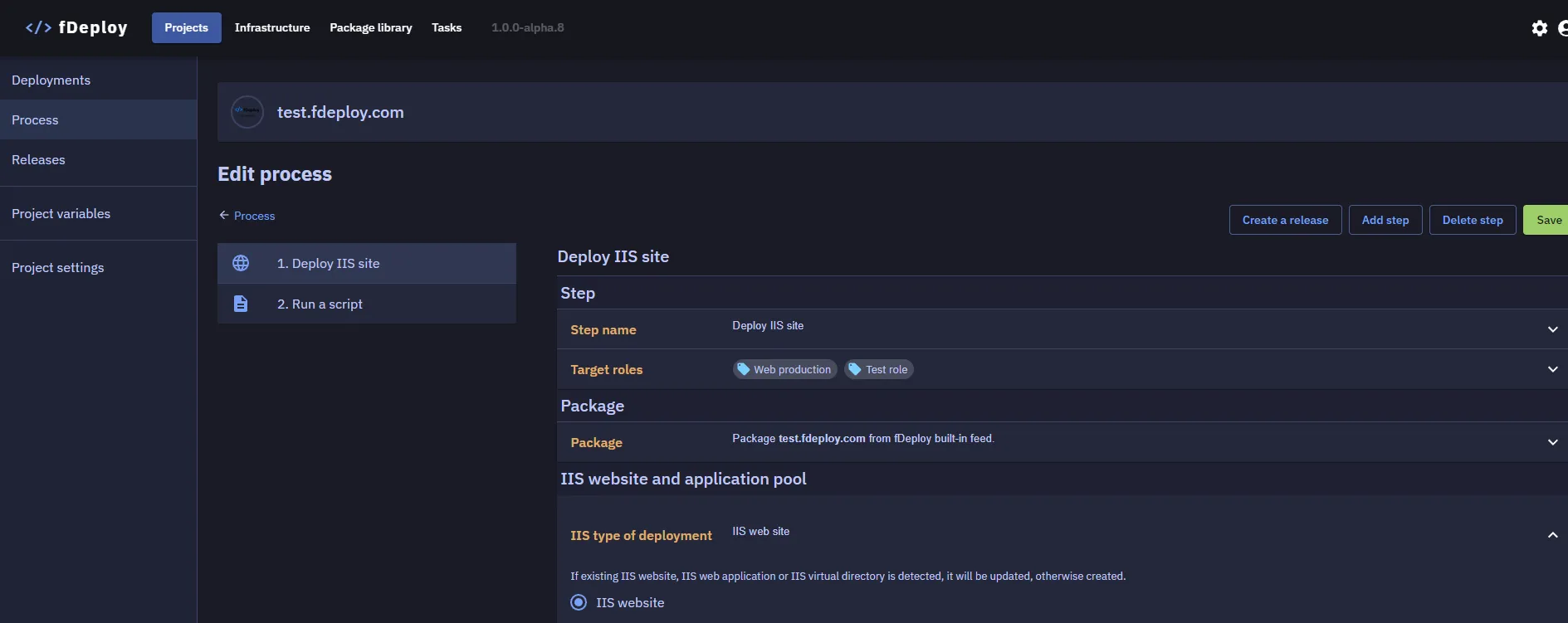
In order to deploy an IIS site, when defining your deployment process, select IIS website as the type of IIS deployment:
Website name
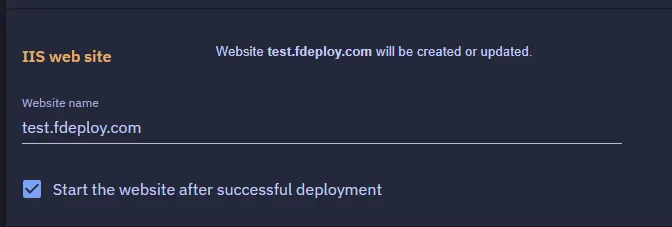
Next, we need to define a name for the web site:
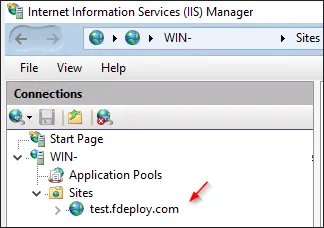
The name you select will be shown in IIS manager as follows:
Next, we’ll need to configure application pool for our site.
Application pool
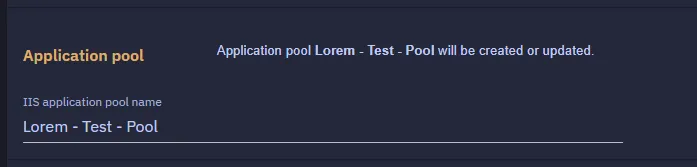
The application pool will be created if it does not exist, or used if it already exists on the deployment targets.
Next, let’s configure bindings.
Bindings
The bindings are described by Microsoft as follows:
The binding includes two attributes important for communication: the binding protocol and the binding information. The binding protocol defines the protocol over which communication between the server and client occurs. The binding information defines the information that is used to access the site. For example, the binding protocol of a Web site can be either HTTP or HTTPS, and the binding information is the combination of IP address, port, and optional host header.
To begin, use the “Add binding” button. Here is a binding example for a website which should be reachable at http://test.fdeploy.com.
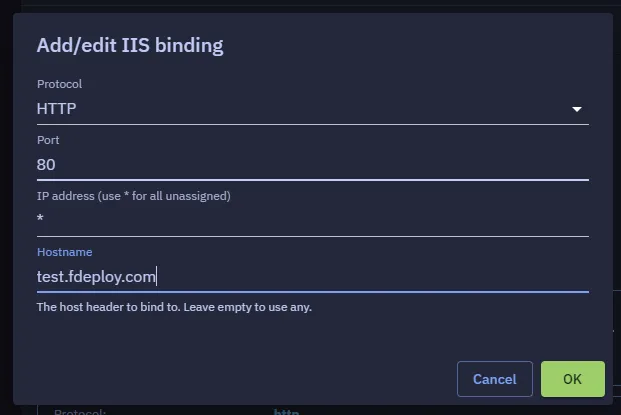
Once you are ready, you can click the OK button to add the binding. You can keep adding new bindings until you are ready to move on to the next step.
Authentication
Next, we’ll need to select the type of authentication to enable for the website.
You can select one or more of the following:
- anonymous
- basic
- windows
If you are not familiar with these options, you can learn more at learn.microsoft.com:
Configuration transforms
fDeploy supports .NET XML Document Transform (XDT) for transforming configuration files during deployment. You can enable automatic transforms that detect *.Release.config and *.<Environment>.config files, and define additional custom transform rules.
Configuration transforms run after the package is extracted and before variable substitution.
For full details on transform syntax and configuration, see the Configuration transforms documentation.
Variable substitution
This section defines target files to perform variable substitution on. Files defined here will be modified by fDeploy Agent and searched for any variables matching the role and environment scope for a given deployment task.
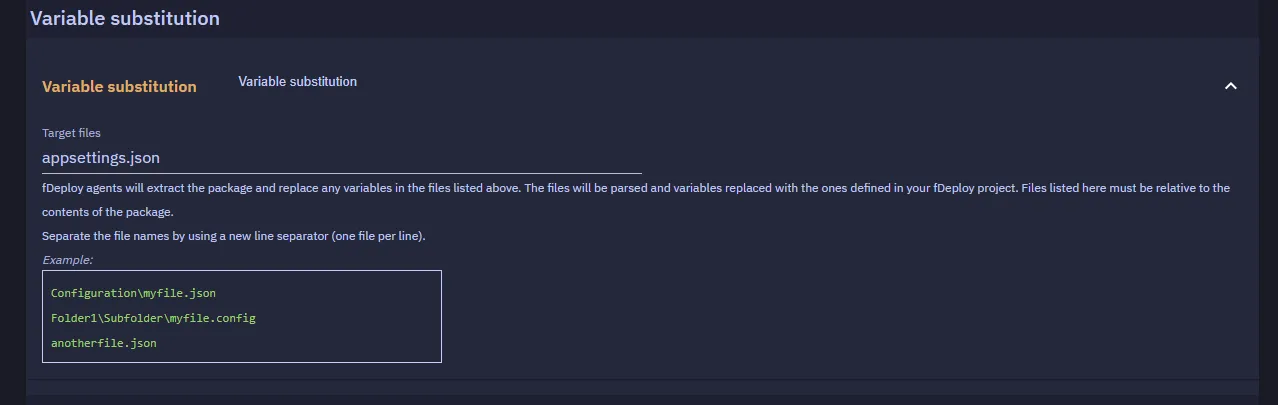
fDeploy agents will extract the package and replace any variables in the files you define in this section. The files will be parsed and variables replaced with the ones defined in your fDeploy project. Files listed here must be relative to the contents of the package. Make sure to separate the file names by using a new line separator (one file per line).
Phase timeout
Default: 60 seconds per phase. Range: 1–3600.
IIS deployment runs as a sequence of PowerShell phases against the target’s WebAdministration module — checking whether the site exists, creating or updating the app pool, setting bindings, configuring authentication, starting the site. The timeout you configure applies independently to each phase, not to the step as a whole.
Why per-phase and not total. A hung Start-Website shouldn’t consume budget that the next phase needs. A stuck phase is also the signal that something is wrong — another 5 minutes rarely helps. Per-phase caps mean a single hung operation fails fast and the task log identifies which phase timed out (e.g. start_website_timeout), rather than the whole step stalling on an unrelated one.
Total step budget. Worst case, an IIS website deployment runs about 7 phases. So the effective upper bound on the step is roughly timeout × number of phases. At the default 60s that’s ~7 minutes. If you raise the timeout to 300s, accept that a fully pathological deployment can take ~35 minutes before it fails.
On timeout. The agent kills the PowerShell process tree running that phase — so no orphaned powershell.exe keeps mutating IIS after the step has already failed — and the deployment task log records the phase name with a _timeout suffix. Timeouts are contained to each deployment target; one target hanging never extends another target’s budget.
Execute deployment
Once you are happy with the process definition, you can proceed with creating a deployment.
- Create a release
- Use the “Deploy to…” button to move on to environment selection
- Select your target environment
- Use the “Deploy” button
At this point, your deployment will be added to queue and executed based on FIFO principle (first in, first out). You will be taken to the deployment task summary where you can follow the progress of the deployment (the view will be short-polled and automatically updated).
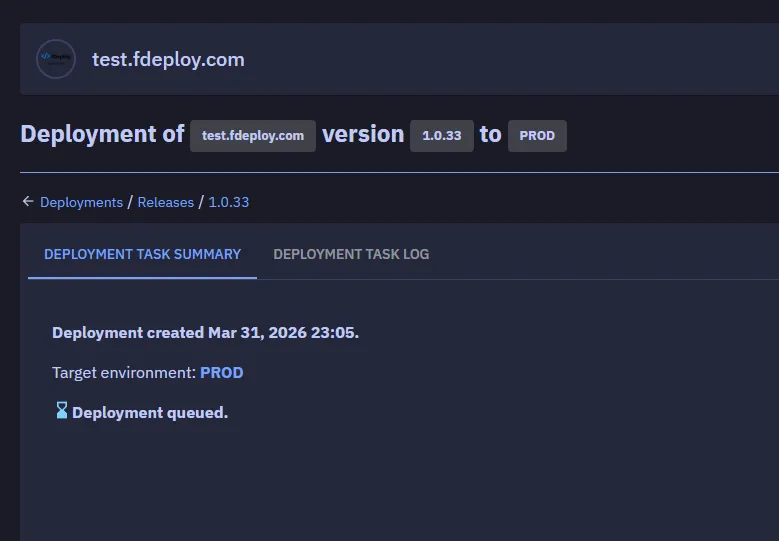
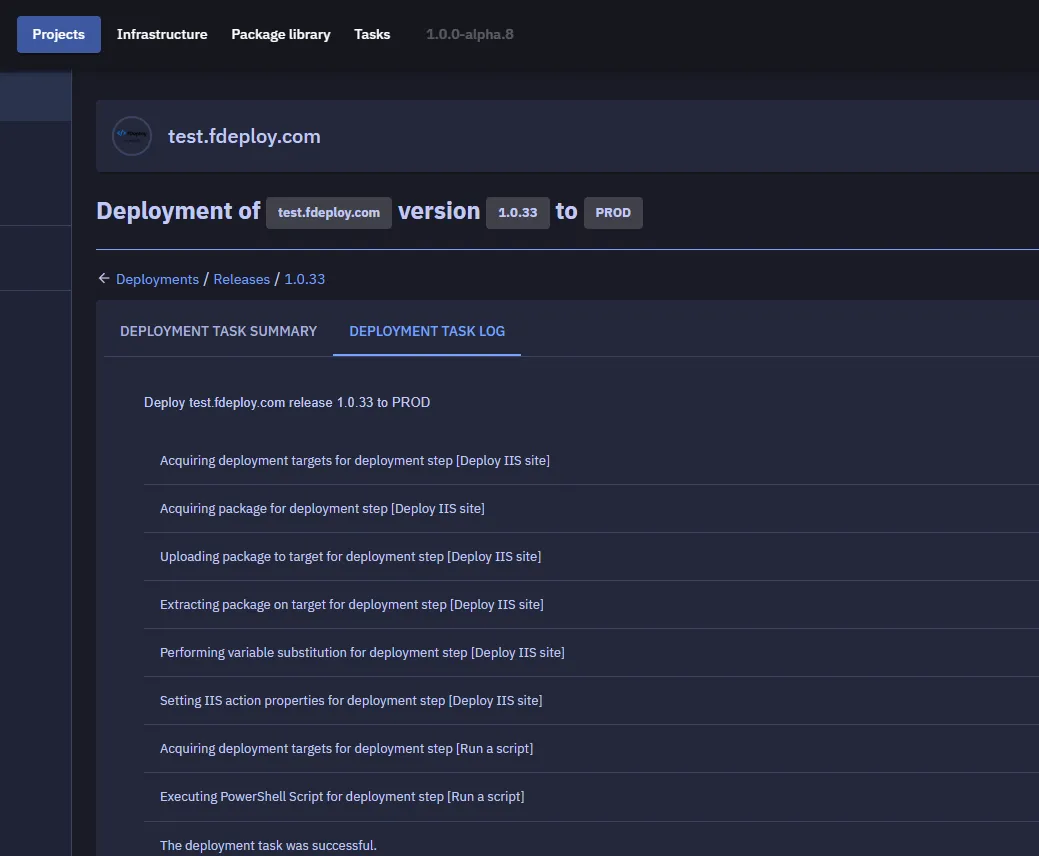
Once the deployment is completed with a status of success or failed, you can view the detailed task log by using the “deployment task log” tab: