

Installing fDeploy Agent
fDeploy Agent is a listening windows service which enables secure communication with incoming fDeploy Server requests via gRPC over HTTP/2. The agent performs assigned tasks, such as receiving incoming packages, performing variable substitution, IIS configuration and PowerShell script execution.
Install fDeploy Agent
The fDeploy Agent installer provides a guided setup wizard that automates the entire installation process.
- Run the
fDeployAgent-Setupinstaller as Administrator - Select the installation directory (default:
C:\fDeploy Agent) - Enter the TCP listening port (default:
5042) - Enter the fDeploy Server certificate thumbprint (SHA-1, 40 characters)
- The installer will:
- Copy application files
- Generate the agent certificate and display its thumbprint
- Configure
appsettings.jsonwith the specified port and server thumbprint - Register and start the fDeploy Agent Windows service
After installation, the wizard will display the agent certificate thumbprint. Copy this thumbprint — you will need it when adding this machine as a deployment target in fDeploy Server.
Silent install
For unattended rollouts across many deployment targets, pass /ACCEPTEULA to confirm acceptance of the Terms of Service:
fDeployAgent-Setup.exe /SILENT /ACCEPTEULAA silent install without /ACCEPTEULA aborts with an error — there is no implicit acceptance. The agent certificate is generated automatically on first start; retrieve its thumbprint afterwards with fDeployAgent.exe -show-thumbprint.
Upgrading with the installer
When upgrading an existing installation, the installer will:
- Skip the port and server thumbprint wizard pages
- Preserve the existing
appsettings.jsonconfiguration - Automatically stop the running service before upgrading files
- Restart the service after the upgrade
Uninstalling
The uninstaller will stop and remove the Windows service. You will be prompted to choose whether to remove configuration files and logs or keep them for a future installation.
fDeploy Agent certificate
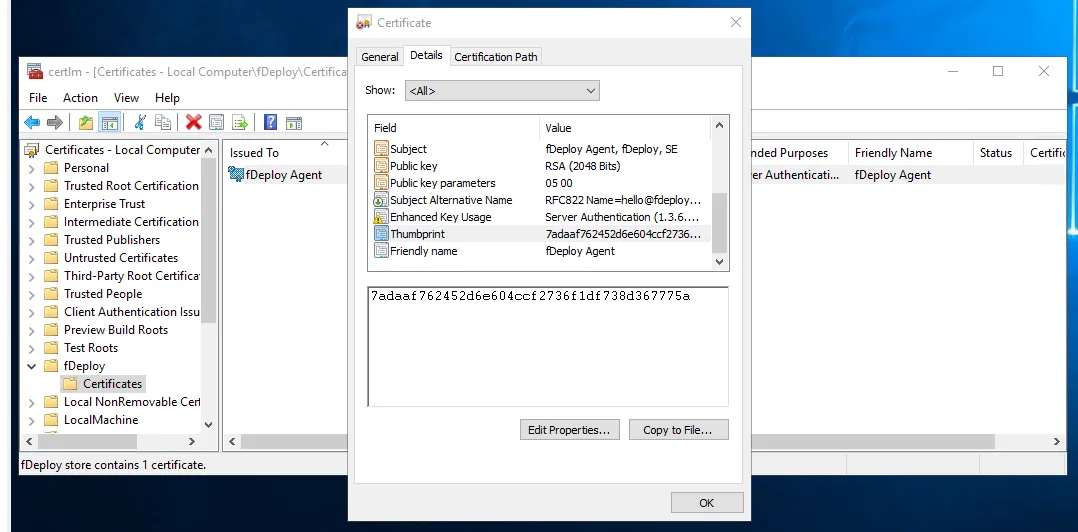
fDeploy Agent will generate a self-signed certificate which will be used as a part of secure communication with fDeploy Server.
This certificate will be stored in Local Computer\fDeploy\Certificates store on the machine where fDeploy Agent is being installed. The self-signed certificate is generated with validity of 100 years.
In order to show the agents certificate thumbprint again, you can start the fDeploy Agent with the following command line argument: -show-thumbprint, or, you can view it in windows certificate manager:
Configure listening port
fDeploy Agent will listen by default on TCP port 5042. The listening port is configured during the installation wizard. You can change it later by editing the appsettings.json in the root directory where you installed fDeploy Agent.
Configure firewall
Add a firewall rule to allow incoming TCP traffic on port 5042 or the port you configured in previous step to the machine where fDeploy Agent is installed.
Configure fDeploy Server certificate
fDeploy Agent will only allow incoming connections which use the fDeploy Server certificate matching the configured thumbprint.
The server thumbprint is configured during the installation wizard. You can also change the thumbprint later by editing the agent’s appsettings.json file and setting the value for key fDeployServerThumbprint.
Permissions required for the fDeploy Agent windows service
Make sure that fDeploy Agent windows service has enough privileges to perform the tasks that you require. You can change the fDeploy Agent service properties by using the Services MMC snap-in (services.msc). By default, fDeploy Agent windows service runs as Local System.
These are:
- Log on as a service
- Read
Local Machinecertificate store - Load
fDeploy Agentcertificate from theLocal Machinecertificate store - Read/write permissions on the directory where fDeploy Agent is installed (for example C:\fDeploy Agent)
- Rights to execute PowerShell scripts
- Rights to manage IIS (C:\Windows\system32\inetsrv)
Directory structure
fDeploy Agent uses the following directory structure within its installation directory:
| Directory | Purpose |
|---|---|
workbench/ | Staging area for uploaded packages before extraction |
serving/ | Extracted package contents used during deployments |
Logs/ | Rolling daily log files |
The workbench and serving directories are organized by project, release version, and deployment ID. These directories are managed automatically by the agent.
Command line arguments
fDeploy Agent supports the following command line arguments:
| Argument | Description |
|---|---|
-show-thumbprint | Display the agent certificate thumbprint |
-replace-certificate | Generate a new agent certificate |