PowerShell scripts
Deploying PowerShell scripts in fDeploy uses the “Execute a script” step template.
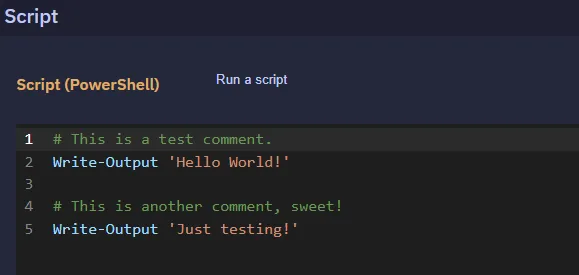
Add PowerShell script body
Add the script body to the script step in your deployment process.
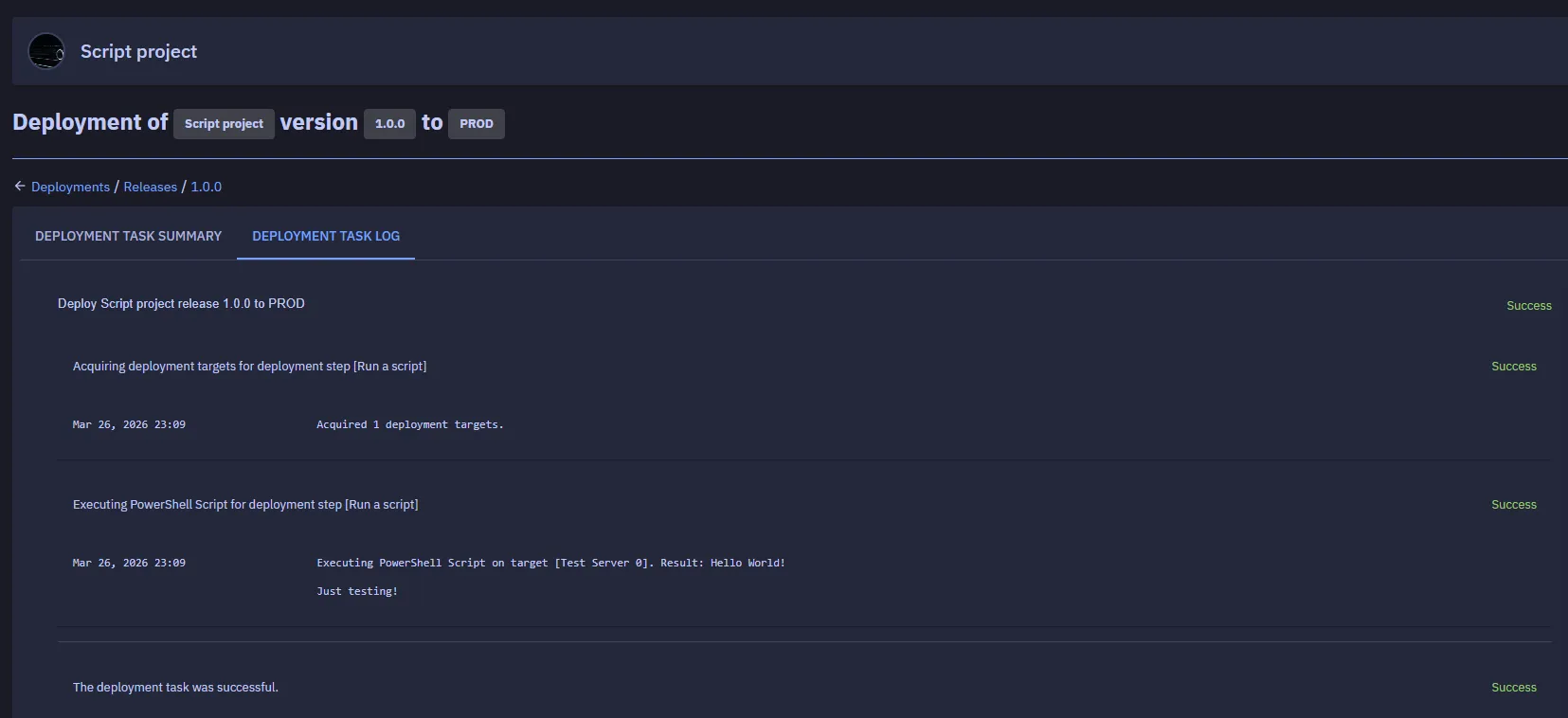
fDeploy Agent will execute the script on your deployment target(s) and catch the output. fDeploy Server will log the output and render it in deployment task log.
Timeout
Default: 60 seconds. Range: 1–3600.
The timeout is the maximum number of seconds the script is allowed to run before the child PowerShell process is killed along with its entire process tree. The same field applies whether the step is configured for server execution or target execution — scripts running on the fDeploy Server and scripts dispatched to deployment targets use one configurable value per step.
Timeouts are contained to each deployment target. If a step runs against three targets and the script hangs on target A, the kill affects only that target’s PowerShell process — targets B and C continue independently and get their own full timeout budget.
Execute deployment
Once you are happy with the process definition, you can proceed with creating a deployment.
- Create a release
- Use the “Deploy to…” button to move on to environment selection
- Select your target environment
- Use the “Deploy” button
At this point, your deployment will be added to queue and executed based on FIFO principle (first in, first out). You will be taken to the deployment task summary where you can follow the progress of the deployment (the view will be short-polled and automatically updated).
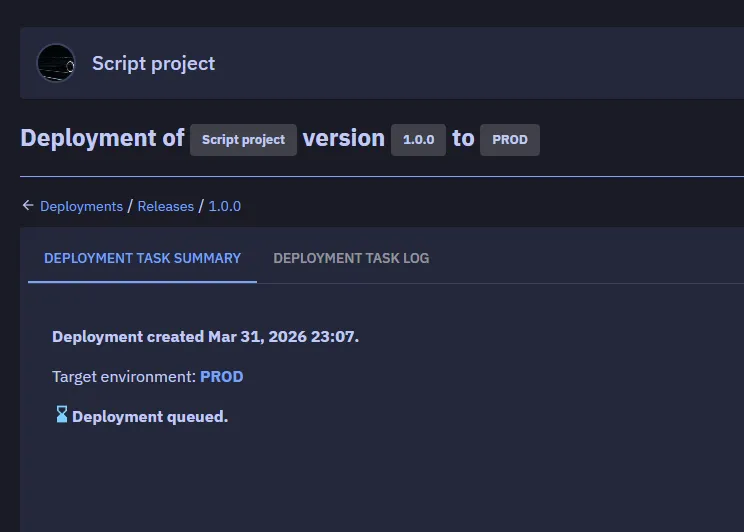
Once the deployment is completed with a status of success or failed, you can view the detailed task log by using the “deployment task log” tab: