Packages
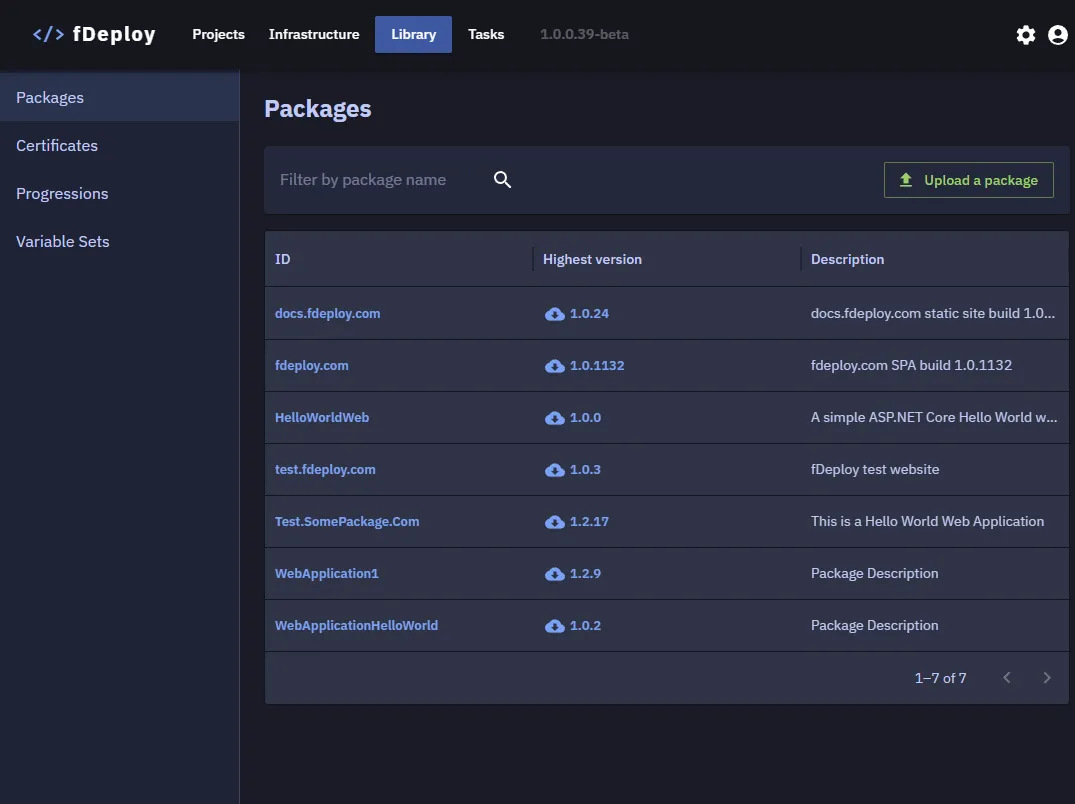
fDeploy Server has a built-in NuGet package library.
To add new packages to fDeploy package library, you can either use the fDeploy Server API or the graphical user interface.
Package library
Click the “Package library” button from the main navigation menu at the top.
From here, you can search for packages by name, view details, and download existing packages. The package list is paginated for large libraries.
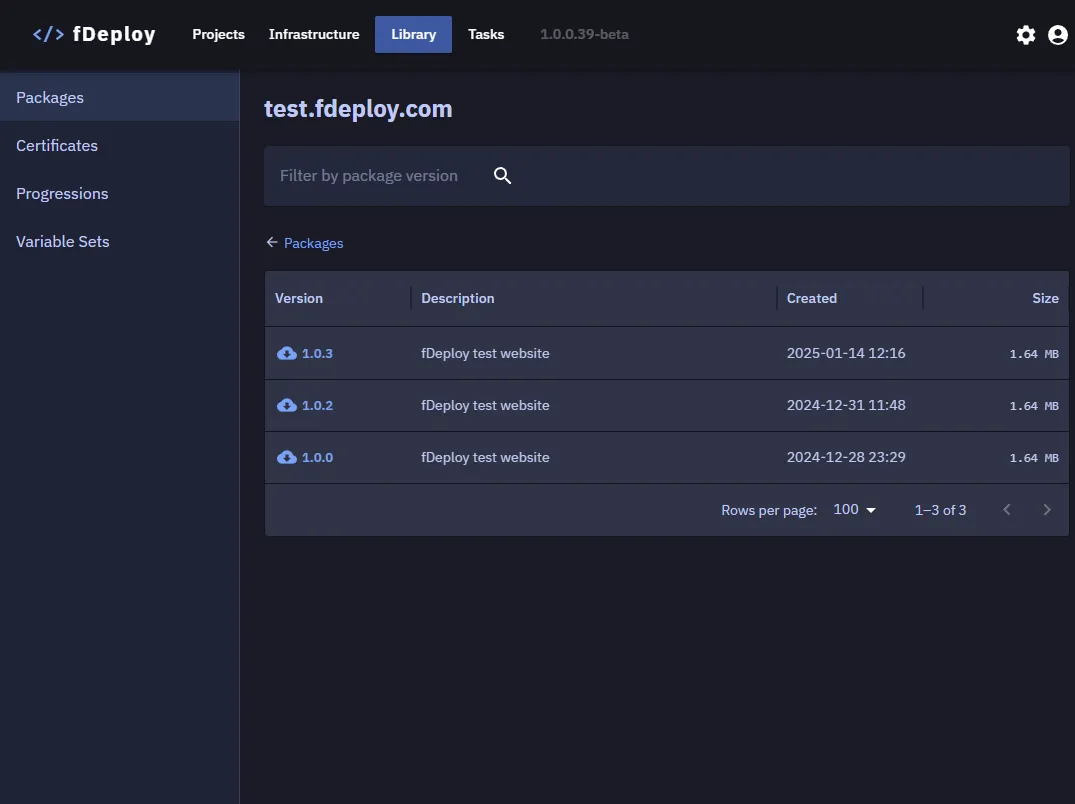
View package versions for a selected package id
You can navigate to the details view for a single package by clicking the package id.
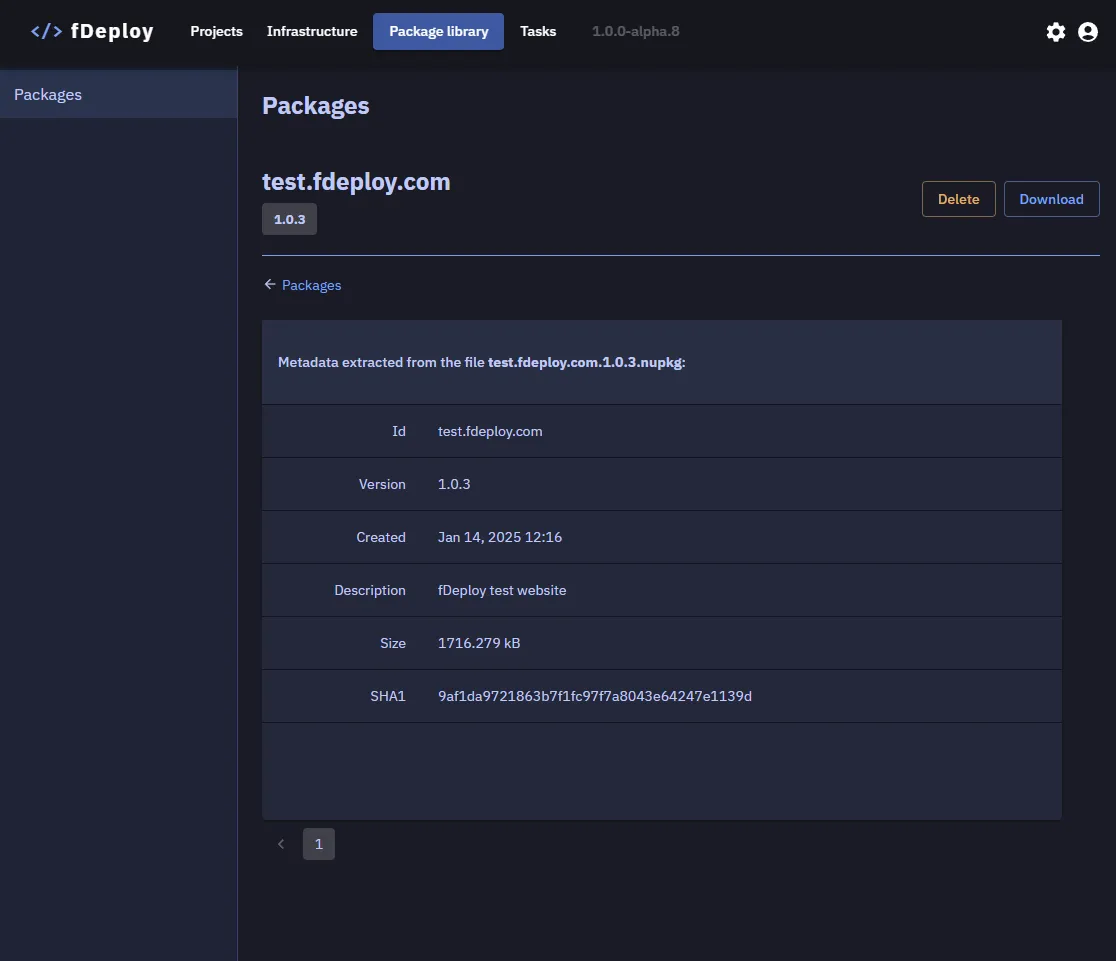
View specific package version details
You can view the details of a single version by clicking the version number.
Adding packages using the graphical user interface
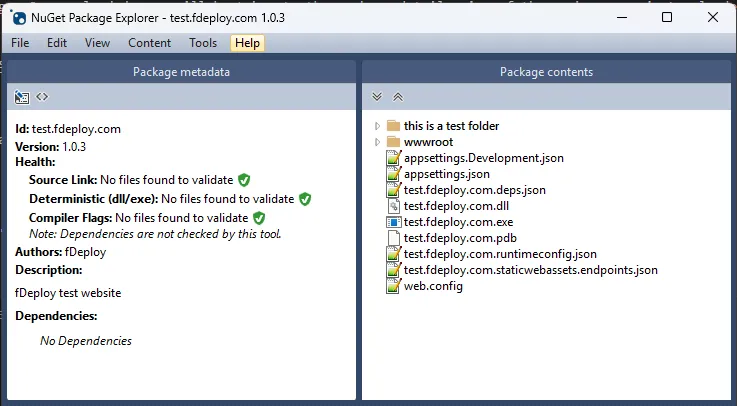
In order to add a new NuGet package, you should pack it using NuGet.exe or another tool of your choice. The package should conform to the NuGet specification and have .nupkg file extension.
Use the “Upload a package” button to select a NuGet package you wish to add to the library.
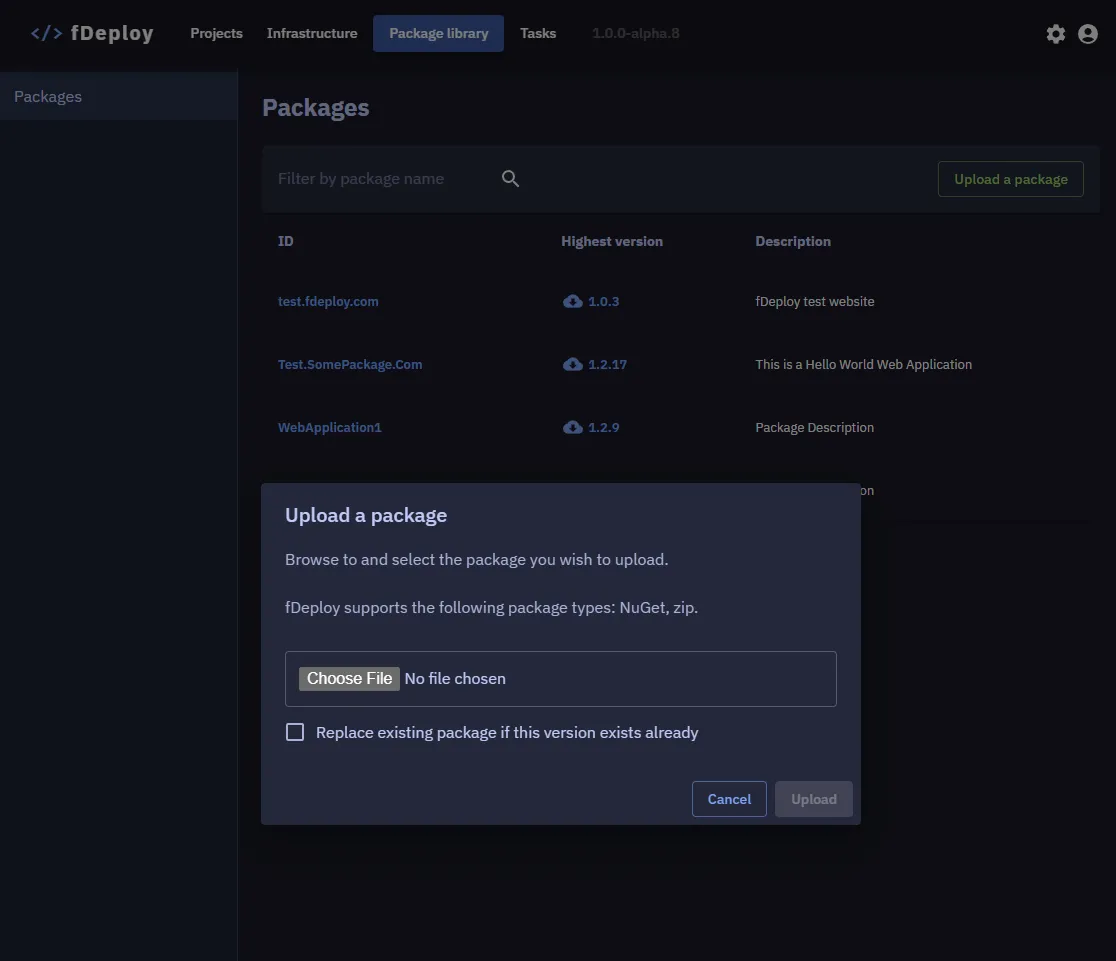
Tick the “replace existing package if this version exists already” checkbox, if you would like to replace existing package with the same id and version.
Finally, use the “Upload” button to upload your package. Once uploaded, you will be taken to the package details view of the package you just uploaded.
Adding packages via fDeploy Server API
You can send a POST request to the endpoint /api/package from your build pipeline.
Sample curl request:
curl -X 'POST' \'https://fdeployserver.yourorganization.com/api/Package' \-H 'accept: application/json' \-H 'Content-Type: multipart/form-data' \-F 'OverWriteExisting=true' \-F 'PackageFile=YOURPACKAGE.nupkg'Here is a sample package opened in NuGet Package Explorer: